Why a Setup Checklist Matters
Most businesses complete only 40-60% of their Google Business Profile setup. Every incomplete section is a missed opportunity. Research shows that businesses with complete GBP profiles receive 7x more clicks and 5x more views than those with incomplete profiles. This checklist will ensure you never miss a critical step.
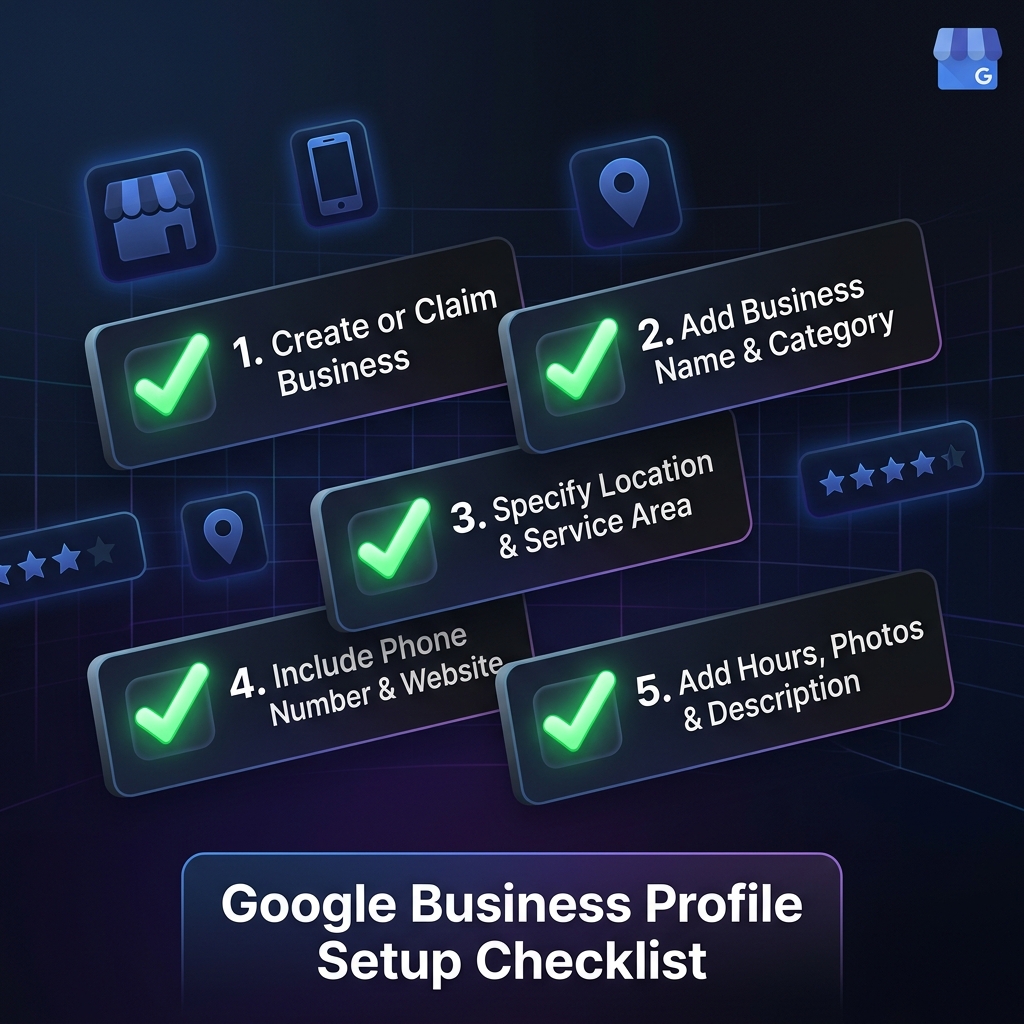
Section 1: Account & Access Setup (Steps 1-5)
- <strong>Step 1: Create or use a dedicated business Google Account</strong>: Don't use a personal Gmail. Create a business@yourcompany.com Google Workspace account or a yourcompany@gmail.com account dedicated to the business.
- <strong>Step 2: Claim or create your GBP listing</strong>: Search for your business at business.google.com. Claim existing or create new. Never create duplicates.
- <strong>Step 3: Complete Google verification</strong>: Choose your verification method (postcard, phone, email, or video) and complete it. Your profile won't go live until verified.
- <strong>Step 4: Add additional owners or managers</strong>: Give trusted team members Manager access. This prevents lockout if you lose access to the primary account.
- <strong>Step 5: Enable notifications</strong>: Turn on email alerts for new reviews, messages, Q&A, and profile suggestions so you never miss customer interactions.
Section 2: Core Business Information (Steps 6-10)
- <strong>Step 6: Set your exact business name</strong>: Use your real-world business name only. No keywords, no location stuffing. Exactly as on your signage.
- <strong>Step 7: Choose your primary business category</strong>: Be as specific as possible. 'Italian Restaurant' is better than just 'Restaurant'. This is your most important ranking signal.
- <strong>Step 8: Add secondary categories (up to 9)</strong>: Add complementary categories that represent other services you offer. E.g., a restaurant could add 'Catering', 'Pizza Delivery'.
- <strong>Step 9: Enter your complete, accurate address</strong>: Use the exact address format Google Maps uses. Ensure the map pin drops in the correct location and adjust it if not.
- <strong>Step 10: Set your service area (if applicable)</strong>: If you serve customers at their location, add up to 20 service areas with cities, zip codes, or regions.
Section 3: Contact & Hours (Steps 11-14)
- <strong>Step 11: Add your primary phone number</strong>: Use a local phone number (not toll-free) for better local ranking signals. Make sure it's answered during business hours.
- <strong>Step 12: Add your website URL</strong>: Link to your actual website homepage or a specific landing page. Ensure the URL works and is not broken.
- <strong>Step 13: Set accurate business hours</strong>: Enter your opening and closing times for each day of the week. Be precise, customers will plan visits based on these hours.
- <strong>Step 14: Add special hours for holidays</strong>: Use the Special Hours feature to update your hours for upcoming holidays, festivals, or special events. Google will remind you to do this.
Section 4: Business Description & Attributes (Steps 15-18)
- <strong>Step 15: Write a compelling business description</strong>: You get 750 characters. Describe what you do, who you serve, what makes you unique, and your location. Include natural keywords but don't keyword-stuff.
- <strong>Step 16: Select relevant business attributes</strong>: Google offers attributes based on your category. Examples: 'Wheelchair accessible', 'Free parking', 'Accepts credit cards', 'Women-led'. Add all that apply.
- <strong>Step 17: Add health & safety attributes (if applicable)</strong>: Post-pandemic, customers look for safety measures. Indicate if you require masks, offer contactless payment, or follow specific protocols.
- <strong>Step 18: Set your appointment/booking link</strong>: If you take appointments, connect your booking system. Google can show a 'Book' button directly on your listing.
Section 5: Photos & Visual Content (Steps 19-22)
- <strong>Step 19: Upload your logo</strong>: Upload a high-quality logo (minimum 250x250px, square format). This appears as your business icon across Google products.
- <strong>Step 20: Upload a cover photo</strong>: This is the main photo that represents your business. Use a professional, high-resolution image (1024x576px recommended) that showcases your business best.
- <strong>Step 21: Upload interior and exterior photos</strong>: Add at least 3 interior photos and 3 exterior photos. This helps customers recognize your location and feel comfortable visiting.
- <strong>Step 22: Upload product, team, and service photos</strong>: Photos of your actual products, your team at work, and your services in action. Aim for 20+ total photos minimum.
Section 6: Products, Services & Content (Steps 23-25)
- <strong>Step 23: Add your products or services catalog</strong>: List all major products/services with descriptions, prices (or price ranges), and images. This appears directly on your listing and can drive direct inquiries.
- <strong>Step 24: Create your first Google Post</strong>: Publish an introductory post or a current offer. This signals to Google and customers that your business is active. Aim to post weekly.
- <strong>Step 25: Seed your Q&A section</strong>: Add 5-10 frequently asked questions as if you're a customer, then answer them comprehensively. This prevents incorrect answers from strangers and provides valuable information upfront.
Ongoing Maintenance After Setup
Setup is just the beginning. To maintain and improve your ranking, you need to treat your GBP as a living, active presence. Here's what to do on an ongoing basis:
- Post updates at least once a week
- Respond to every review within 24 hours
- Add new photos monthly
- Update hours for holidays and special occasions
- Monitor and answer new Q&A questions within 24 hours
- Check GBP Insights weekly to track performance
- Watch for Google's suggestions to update your profile
Conclusion
This 25-step checklist covers every aspect of Google Business Profile setup. Work through it systematically, and you'll have one of the most complete and competitive listings in your area. Remember, completeness is a ranking factor, and every section you leave empty is an opportunity your competitors might fill.
If you searched for google business profile setup checklist, 25 steps to a perfect listing, you need more than definitions, you need an execution system.
Final Takeaway
Google Business Profile Setup Checklist, 25 Steps to a Perfect Listing is not a one-time project. Consistency compounds, spam collapses.